Sharing Portal Links
When you import an order, Trackod gives you a link to share with your vendor. The vendor clicks the link and can view and update the order — no account or login needed.
How It Works
When you import a purchase order, you get a link that goes directly to that order. Share this link with your vendor through email, WhatsApp, SMS, or any channel you prefer.
Vendors do not need to create an account or log in. They simply click the link and they are in. This makes it easy for vendors to participate regardless of their technical comfort level.
Getting the Link
You can get the link to share in two ways:
During Import
After importing a purchase order, the success screen shows a link you can copy and share with the vendor.
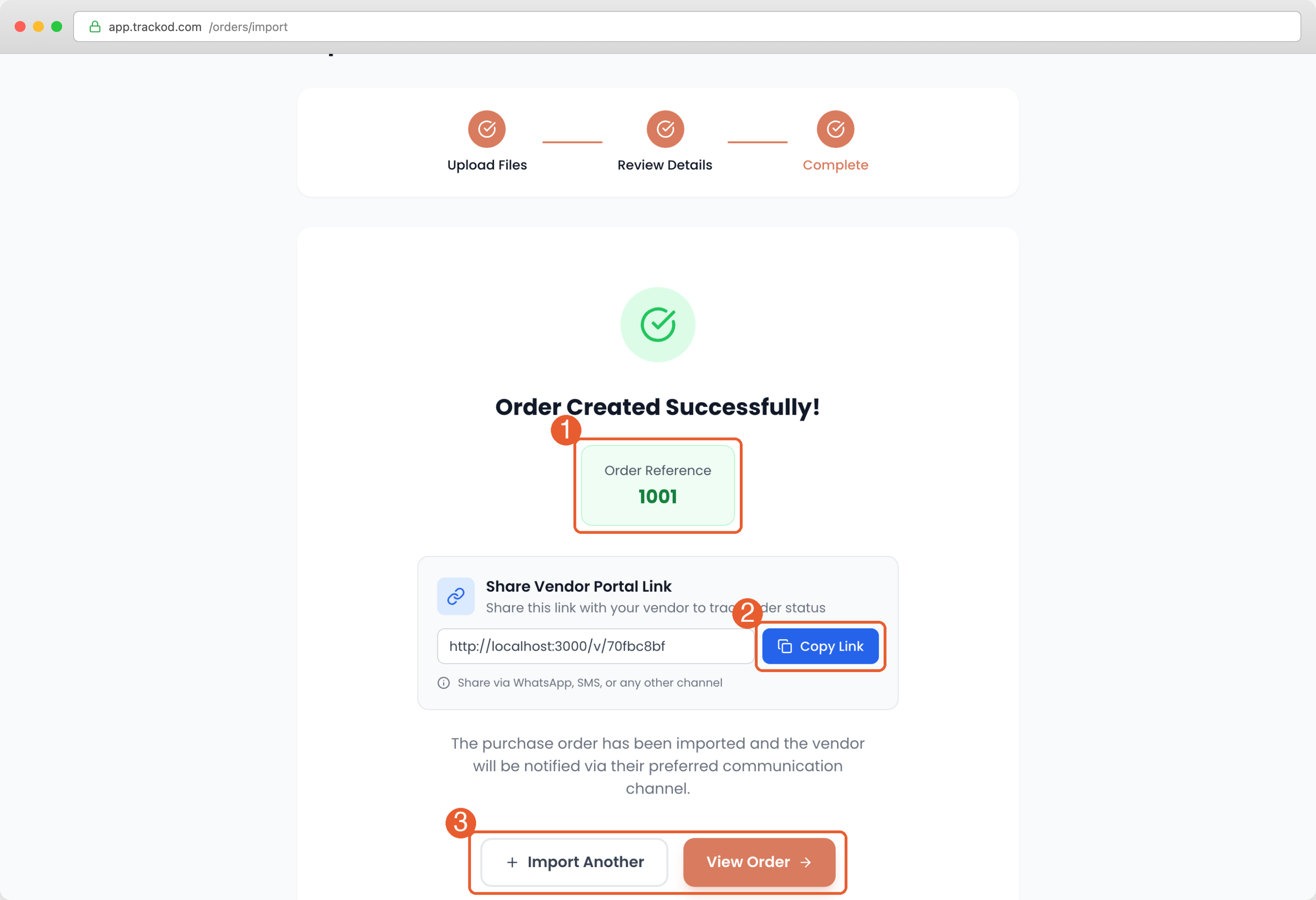
From the Order Details Page
For any existing order, you can find the link in the Order Details page. Look for the share option in the vendor information section.
Ways to Share the Link
Choose the method that works best for your vendor relationship:
| Method | When to Use |
|---|---|
| Trackod Email | During import, choose "Send purchase order + tracking link" or "Send tracking link only" |
| Copy the link and paste it in a WhatsApp message to the vendor | |
| SMS | Copy the link and send via text message |
| Phone | Read the link to the vendor, or follow up the call with a message |
| Other | Any channel you normally use to communicate with this vendor |
If you usually communicate with a vendor through WhatsApp, sharing the link there is often more effective than email. The vendor is more likely to see and act on it quickly.
What Vendors See
When a vendor clicks the link, they see a simple page where they can view and update the order.
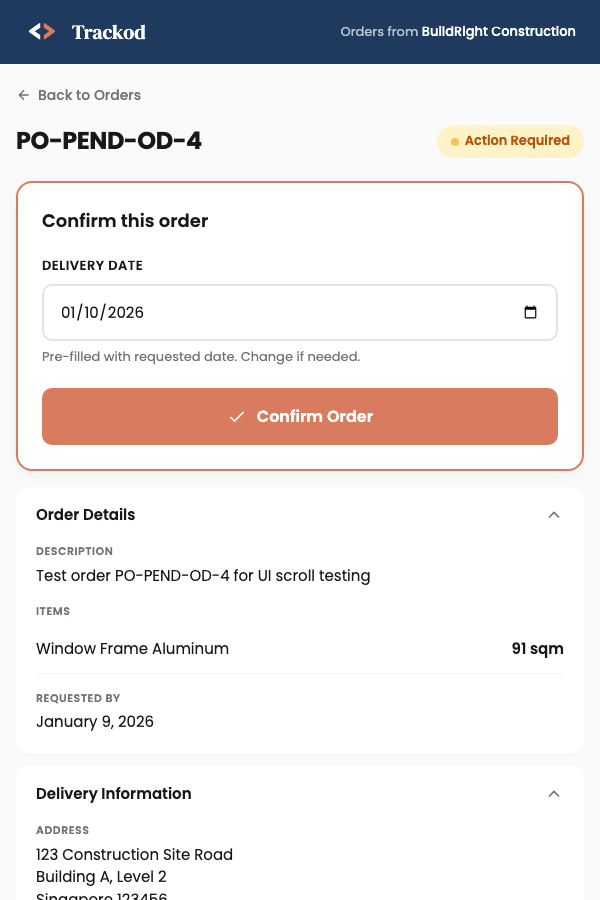
On this page, vendors can see:
- Order details — Reference number, line items, quantities, delivery address
- Status options — Buttons to confirm the order and update delivery status
- Expected delivery date — A field to enter when they will deliver
The vendor can click "Back to Orders" to see all orders from your company in one place.
The vendor portal is designed to be simple. Vendors can understand and use it without training.
Best Practices
Send the Link Promptly
Share the link as soon as you import the order. The sooner the vendor has access, the sooner they can confirm and start updating.
Include Context
When sharing via WhatsApp or SMS, add a brief message explaining what the link is for:
"Hi, this is the Trackod link for PO-2026-0142. Please acknowledge the order and let us know the expected delivery date."
Follow Up if No Response
If a vendor has not accessed the portal after a day or two, follow up. They may have missed the message, or the link may have gone to spam if sent via email.
One Link Gets Them In
Each link you share goes to a specific order. But once the vendor opens any link, they can click "Back to Orders" to see all orders from your company.
This means you do not need to send a link for every order. After the first link, the vendor already knows how to access their dashboard with all your orders.
Troubleshooting
Vendor says they did not receive the link
If you sent via Trackod email, ask them to check their spam folder. Alternatively, copy the link manually and share it via WhatsApp or SMS.
Vendor cannot open the link
Make sure you shared the complete link. Some messaging apps cut off long URLs. Try sending the link on its own, without extra text.
Link is not working
If a vendor says the link is broken, check that you copied the full URL. You can always get the link again from the Order Details page.
What's Next
Now that you know how to share portal links, learn what vendors can do once they access their dashboard.
Continue to Vendor Updates to understand how vendors view and update orders.