Account Setup
This section walks you through logging in, creating your account, verifying your email, and setting up your company.
Before You Begin
To use Trackod, your company admin must first be registered by the Trackod team. If you are the admin and have not yet been set up, please contact us at support@trackod.com with your email address. We will add you to the system, and you can then create your account.
If your admin has already set up your company and invited you, you can proceed directly to Step 1 below.
Step 1: Go to the Login Page
Open your browser and go to app.trackod.com
You will see the Trackod login page.
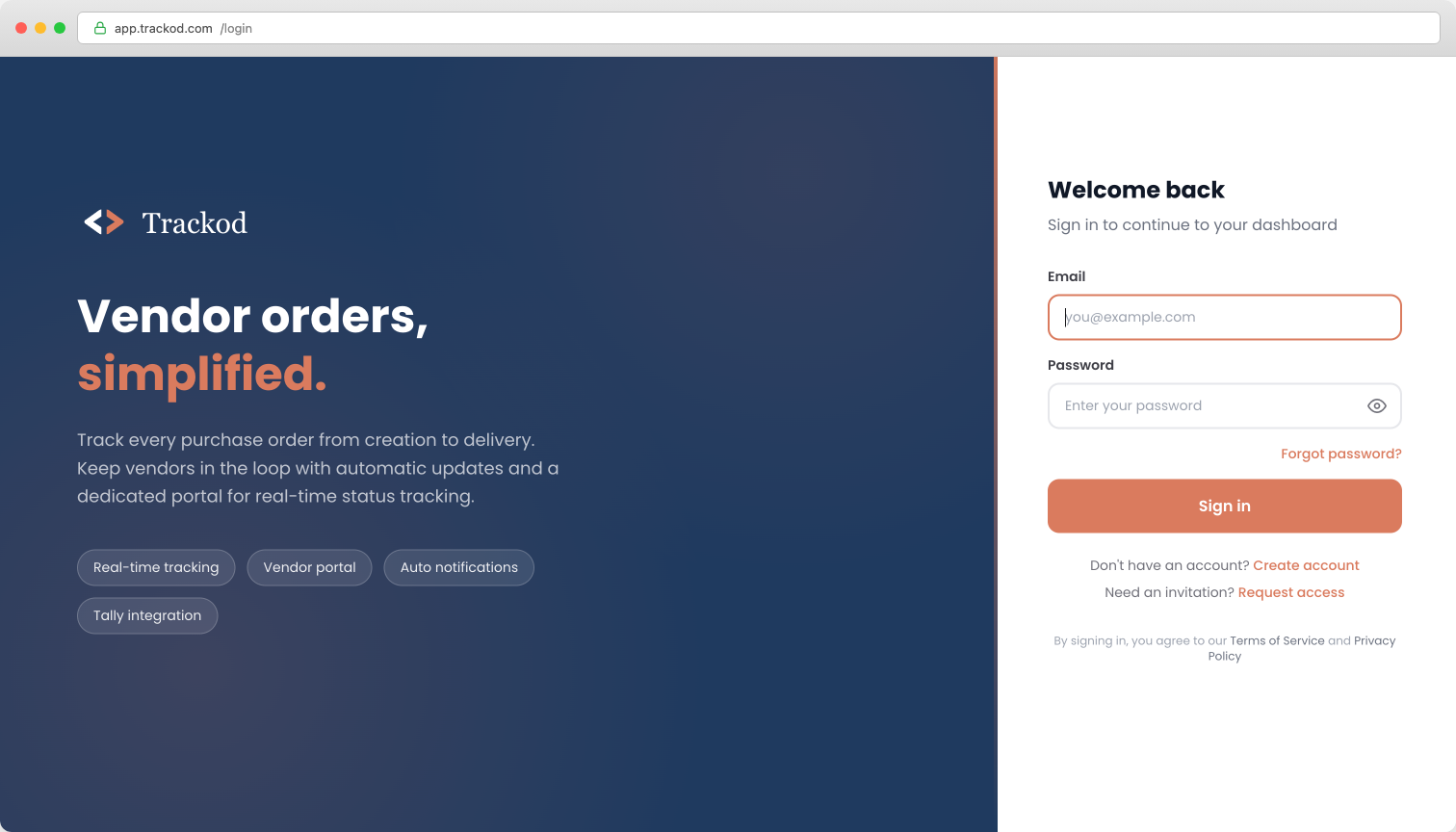
Step 2: Create Your Account
If this is your first time, click "Create account" below the Sign in button.
You will see the account creation form.
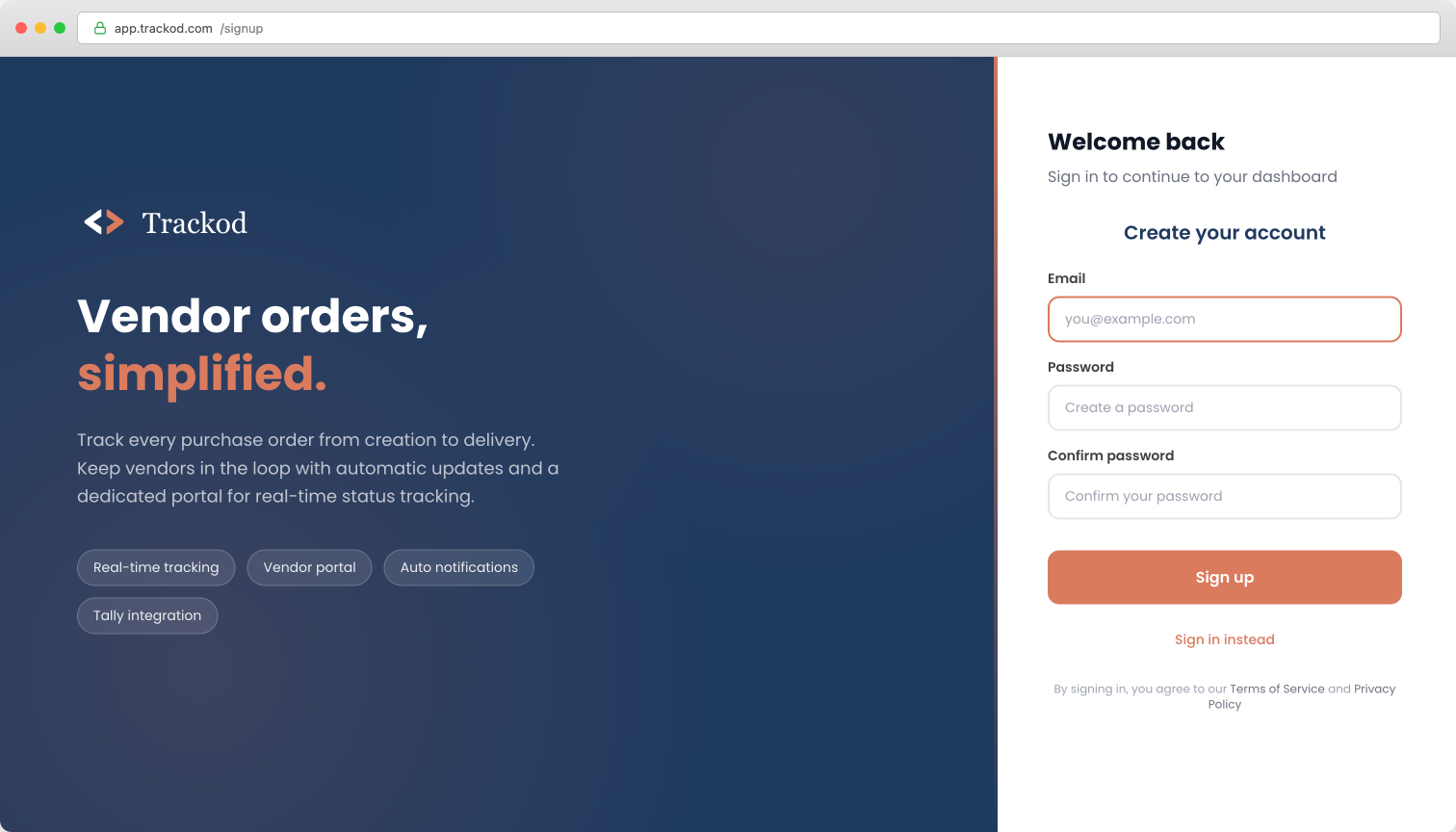
Enter the following:
| Field | What to Enter |
|---|---|
| Your work email address (the one registered with Trackod) | |
| Password | Create a strong password |
| Confirm password | Enter the same password again |
Click "Sign up" to continue.
You must use the email address that was registered with Trackod. If you use a different email, the signup will not work.
Step 3: Verify Your Email
After clicking Sign up, you will receive an email with a verification code.
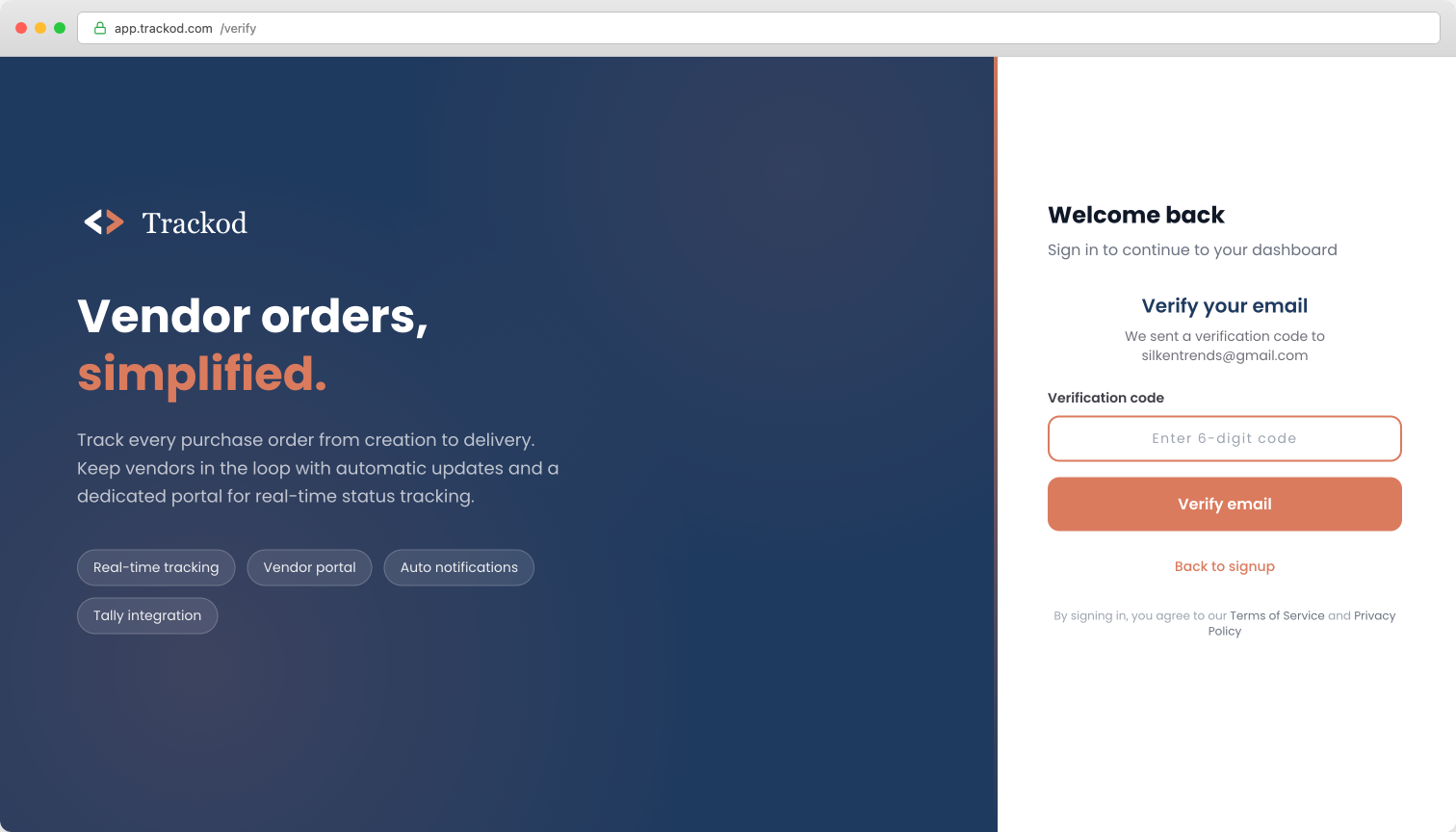
The verification email sometimes lands in spam or junk. If you do not see the email in your inbox, check there first. If you find it in spam, mark it as "Not Spam" so that future emails from Trackod arrive in your inbox correctly.
If you still do not see the email after checking spam, click "Resend code" on the verification screen.
Step 4: Set Up Your Company (Admin Only)
This step only applies to the company admin. Team members will not see this screen — they will go directly to the main Trackod screen after verification.
After verification, the company admin will see the company setup screen. This only appears once — the first time the admin logs in.
Enter the following:
| Field | What to Enter |
|---|---|
| Company Name | Your company's name as you want it to appear in Trackod |
| Your company's email address (can be the same as your admin email) | |
| Country | Select your country from the dropdown |
Click "Complete Setup" to continue.
After completing setup, you will see the main Trackod screen and can begin using the platform.
What's Next
Your account is now set up. The next step is to invite your team members so they can access Trackod too.
Continue to Invite Your Team to learn how to add team members to your account.