Action Queue
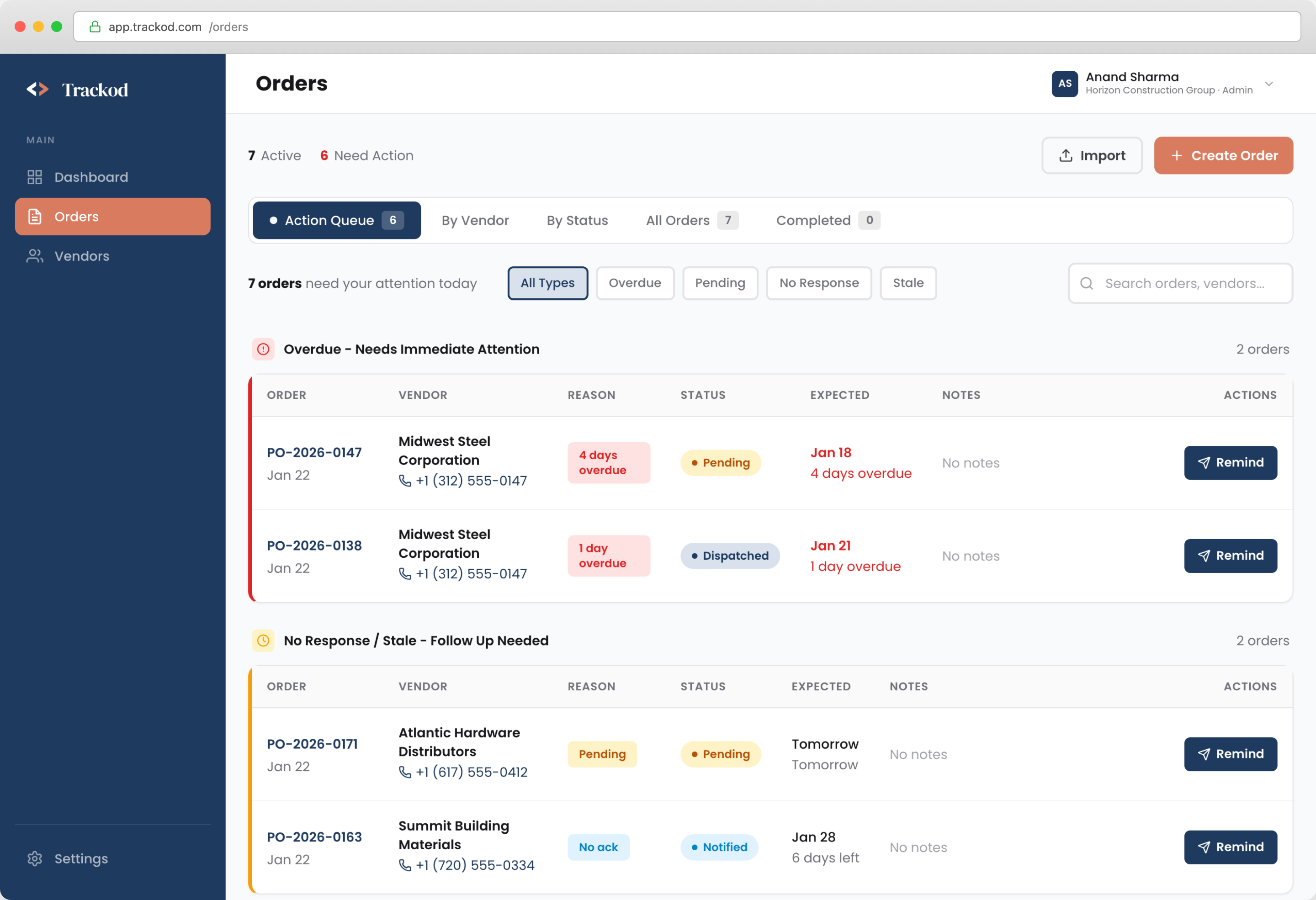
The Action Queue is your daily starting point in Trackod. It automatically identifies orders that need attention and organizes them by priority, so you know exactly what to focus on each morning.
What is the Action Queue?
Instead of scanning through all your orders to find problems, the Action Queue surfaces them for you. It answers the question: "What needs my attention today?"
Priority Categories
The Action Queue organizes orders into three priority categories:
| Category | What It Means | Recommended Action |
|---|---|---|
| Overdue | Orders past their expected delivery date | Follow up immediately |
| Pending Response | Vendor has been notified but has not acknowledged | Send a reminder |
| Stale | No activity for several days | Check if everything is on track |
Overdue Orders
These are orders where the expected delivery date has passed but the order has not been marked as delivered. This is your highest priority.
Overdue orders indicate a potential problem. Contact the vendor right away to understand the delay and get an updated timeline.
Pending Response
These are orders where you have notified the vendor, but they have not yet acknowledged the order. The vendor may not have seen the notification, or they may be reviewing the order details.
If an order has been pending response for more than a day or two, send a reminder through Trackod or follow up via phone/WhatsApp.
Stale Orders
These are orders where nothing has happened for several days — no status updates, no notes, no activity. They may be progressing normally, but the lack of activity could also mean something has been forgotten.
A quick check-in call or message to the vendor ensures everything is still on track.
Your Morning Routine
Each morning, work through the Action Queue in order:
This routine ensures nothing slips through and helps you prioritize your most urgent work first.
Taking Action
When you click on an order in the Action Queue, you open the Order Details page where you can:
- Send a reminder — Prompt the vendor to respond
- Update status — If you have new information from a call or message
- Add a note — Record what you learned or what was discussed
- View history — See the complete timeline of the order
After following up on an order, add a note with what you learned. This keeps your team informed and creates a record for future reference.
How Orders Leave the Action Queue
Orders automatically leave the Action Queue when their situation is resolved:
| Category | Leaves Queue When... |
|---|---|
| Overdue | Status updated to Delivered, or expected date updated to a future date |
| Pending Response | Vendor acknowledges the order (status changes to Acknowledged) |
| Stale | Any activity occurs — note added, status updated, reminder sent |
Best Practices
Work Through Categories in Order
Start with Overdue (highest priority), then Pending Response, then Stale. This ensures you address the most urgent issues first.
Don't Let the Queue Build Up
Try to clear the Action Queue each day. If orders keep accumulating, it becomes harder to identify what truly needs attention.
Add Notes After Every Follow-up
When you call a vendor or send a message, add a note to the order. This keeps the record complete and helps your team understand the current status.
Use the Queue Numbers as a Health Metric
If your Overdue count is consistently high, it may indicate issues with vendor reliability or delivery estimates. Track these numbers over time to identify patterns.
Summary
| What the Action Queue Does | Why It Matters |
|---|---|
| Surfaces orders needing attention | No more searching through spreadsheets |
| Organizes by priority | Focus on urgent items first |
| Updates automatically | Orders leave the queue when resolved |
| Daily Routine |
|---|
| 1. Check Overdue — follow up immediately |
| 2. Review Pending Response — send reminders |
| 3. Look at Stale — ensure nothing is forgotten |
What's Next
Now that you understand how to manage orders and use the Action Queue, learn about the vendor portal — how to share links with vendors and how they can update orders.
Continue to Sharing Portal Links to learn how vendors access their portal.