Invite Your Team
Once your account is set up, you can invite team members to join your Trackod workspace. This section explains how to navigate to Settings, invite members, and help them get started.
Only Admins can invite team members. If you are a Member, you will not see the invite options described here. Ask your Admin to add new team members.
Navigate to Settings
After logging in, you will see the main Trackod screen. The landing page may change as we update Trackod, but accessing Settings always works the same way.
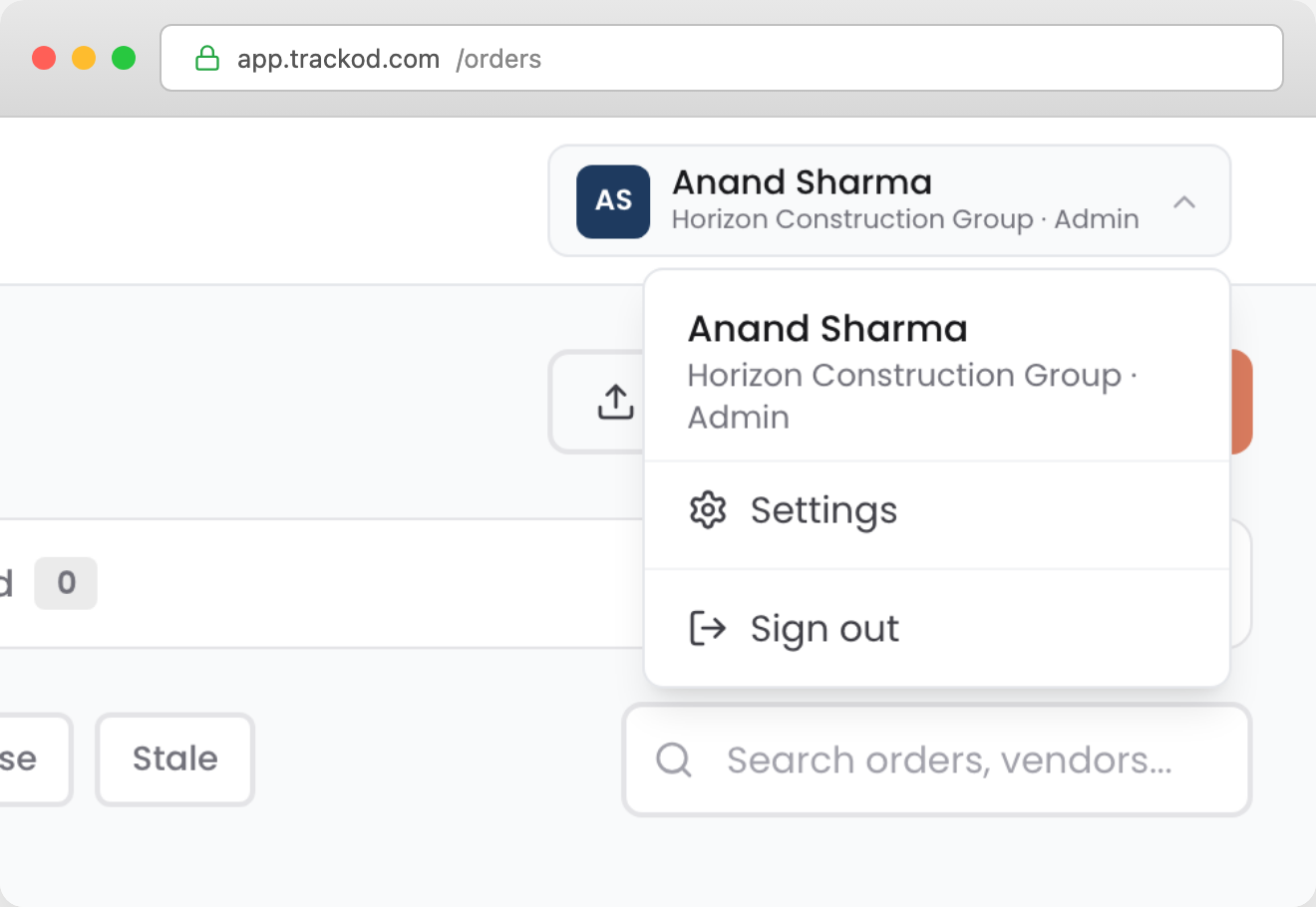
Invite Team Members
In the Settings page, you will see the Team Members section.
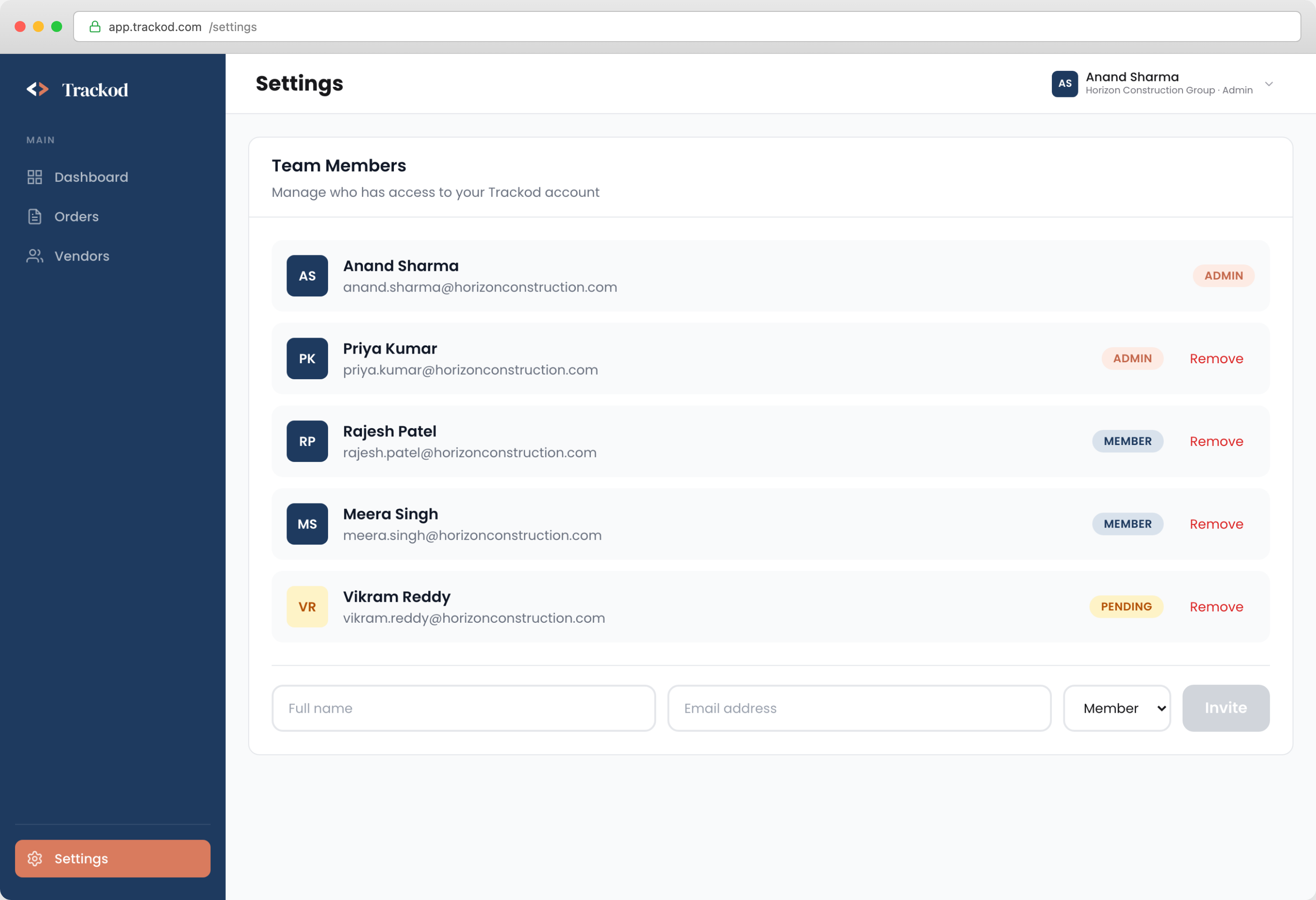
Understanding Roles
| Role | What They Can Do |
|---|---|
| Admin | Full access to Trackod, plus the ability to add or remove team members |
| Member | Full access to Trackod, but cannot add or remove team members |
Create most team members as Members. Only give Admin access to people who need to manage the team.
Adding a New Team Member
To invite a new team member, fill in the form at the bottom of the Team Members section:
| Field | What to Enter |
|---|---|
| Full name | The team member's name |
| Email address | Their work email address |
| Role | Select "Member" (recommended) or "Admin" |
Click "Invite" to add them.
The new member will appear in the list with a "Pending" status until they create their account.
Share the Login Link with Your Team
After inviting a team member, they need to create their account.
Trackod does not yet send invitation emails automatically. This feature is coming soon.
For now, share the login link with your team members directly:
Login link: app.trackod.com
Send this link via email, WhatsApp, or any other channel. Ask them to:
Troubleshooting
I did not receive the verification email
Check your spam or junk folder. If you find it there, mark it as "Not Spam" so future emails arrive correctly. If still not found, try clicking "Resend code" on the verification screen.
I forgot my password
On the login page, click "Forgot password?" and follow the instructions to reset it.
My team member's signup is not working
Make sure they are using the exact email address you entered when inviting them. The email must match exactly — including capitalization and any dots or special characters.
I do not see the Settings option
Only Admins can access Settings. If you are a Member, ask your Admin to make changes.
Summary
Here is a quick reference for the setup process:
| Step | Who | Action |
|---|---|---|
| 1 | Everyone | Go to app.trackod.com |
| 2 | Everyone | Create your account (first time only) |
| 3 | Everyone | Verify your email with the code sent to your inbox |
| 4 | Admin only | Set up your company (first time only) |
| 5 | Everyone | Navigate using the top-right menu |
| 6 | Admin only | Go to Settings then Team Members to invite your team |
| 7 | Admin only | Share app.trackod.com with team members so they can sign up |
What's Next
You are now ready to start using Trackod. The next section will show you how to import your purchase orders.
Continue to Import Purchase Orders to bring your orders into Trackod.