Welcome to Trackod
Learn how to bring all your vendor order information into one place. This guide walks you through setup, importing orders, and daily use.
You Are Using an Alpha Version
Thank you for being one of our early users! Trackod is still in active development — you may encounter bugs, missing features, or rough edges.
Your feedback shapes this product. As you use Trackod, please note any issues, ideas, or suggestions. What works for you? What does not? What is missing?
We are building this to make life easier for purchase managers like you. Your input today helps us get it right.
What you will learn:
- What Trackod is and how it fits into your workflow
- How to set up your account and invite your team
- How to import purchase orders and start tracking
- How to use Trackod for daily order management
Who this guide is for:
This guide is written for purchase managers and procurement teams who want to bring all their order information into one place. No technical knowledge is required.
We recommend reading the introduction first to understand what Trackod can do for you. After that, you can follow the setup steps in order, or jump to any section you need.
What is Trackod?
Trackod is a vendor order management platform. It helps purchase managers track every order from the moment it is placed until it is delivered.
How it works:
You create purchase orders in your existing accounting software (such as Tally, QuickBooks, Zoho Books, or any other system). Then, you import those orders into Trackod. From that point, Trackod handles all the tracking, vendor communication, and record-keeping.
You continue to create purchase orders where you always have. Trackod is the layer that comes after — helping you manage what happens between placing an order and receiving it.
Why this matters:
When you have dozens of orders running at the same time, information gets scattered. Vendor replies are in email. Status updates are in WhatsApp. Notes are in spreadsheets. Trackod brings all of this into one place.
Every order has a complete history. You can see when it was placed, when the vendor acknowledged it, what updates they provided, and when it was delivered. If your manager asks about an order from last month, you can find it in seconds — along with every conversation and status change.
This is what we mean by a "system of record." All your order information lives in one place, organized and searchable.
How Purchase Managers Typically Manage Orders
Before we show you how Trackod works, let us look at what order management often looks like today.
Purchase managers handle a continuous flow of orders. New orders come in daily. Existing orders move through different stages — some waiting for vendor confirmation, some in preparation, some out for delivery. At any point, there are many orders active at the same time, each at a different stage, each with a different vendor.
To keep track of all this, most teams rely on a combination of tools:
- Excel to list orders, vendors, expected dates, and status updates
- Email to send purchase orders and receive vendor replies
- WhatsApp for quick follow-ups and delivery updates
- Phone calls for urgent matters
- Memory for everything else
This approach works at a small scale. But as order volume grows, cracks begin to show.
Finding information takes time. Which orders are due this week? You scroll through rows. What did the vendor say about that delayed shipment? You search your emails. When was the last time you followed up? You check WhatsApp.
History is hard to trace. If a delivery goes wrong, piecing together what happened means checking multiple places. Notes in the spreadsheet may be incomplete. Emails may be buried. WhatsApp messages may be deleted.
Nothing is connected. Excel does not know about the email you sent. The email does not know about the phone call you made. You are the only link between all these pieces.
Errors happen. When information lives in multiple places, mistakes are inevitable. A cell gets accidentally deleted in Excel. A status update is entered in the wrong row. An email gets missed. A WhatsApp message is forgotten. There is no single source of truth — and no easy way to catch errors before they cause problems.
Knowing what needs attention is manual work. Which orders are overdue? Which vendors have not responded? What should you follow up on today? There is no system telling you. You have to scan through everything yourself.
How Trackod Brings It Together
Trackod replaces the scattered approach with a single, connected system.
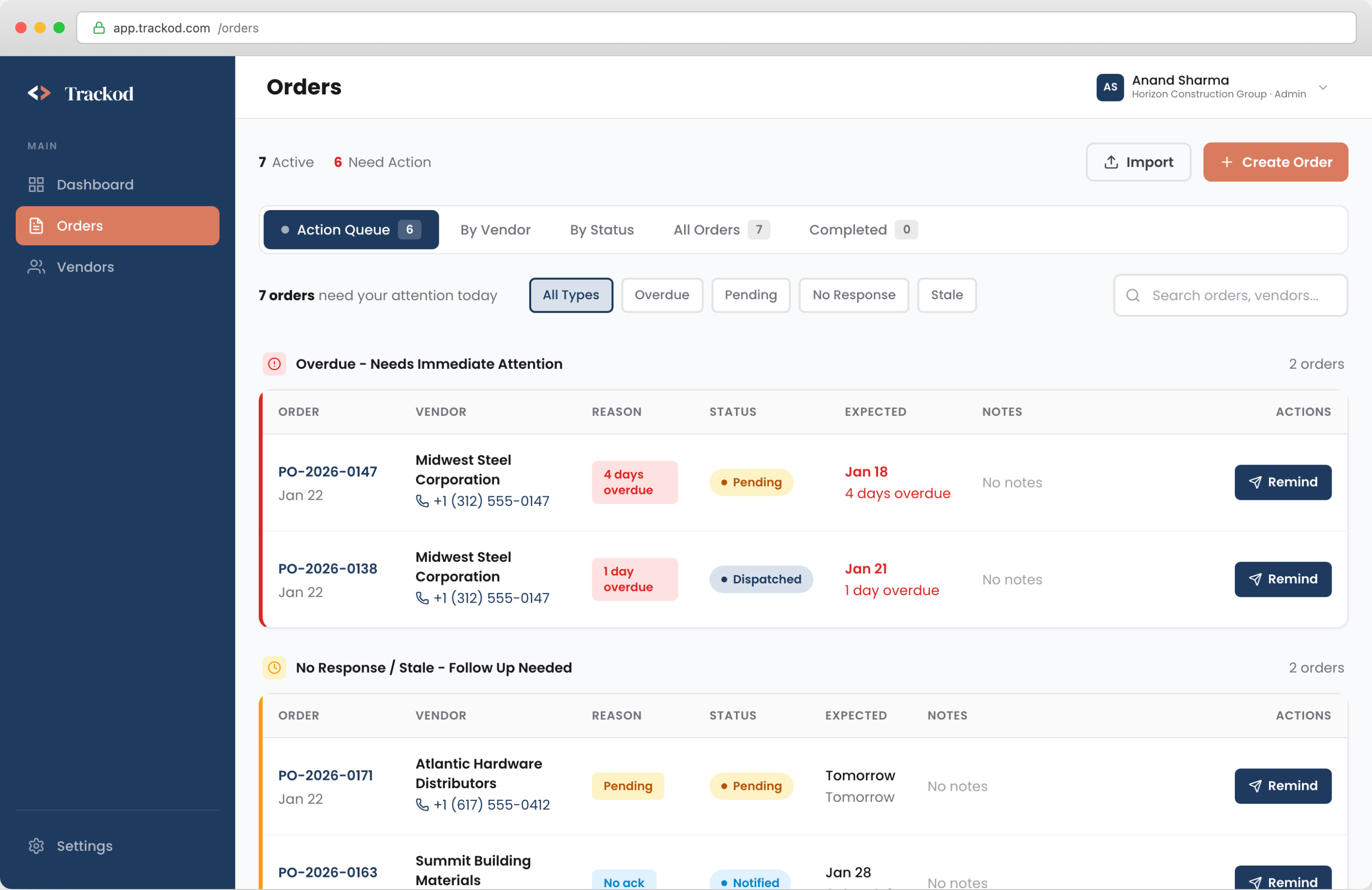
One place for all orders.
Every order you import into Trackod appears in a single list. You can see the status of each order at a glance — what stage it is in, when it is expected, and when it was last updated. No more switching between Excel tabs or searching through files.
Complete history for every order.
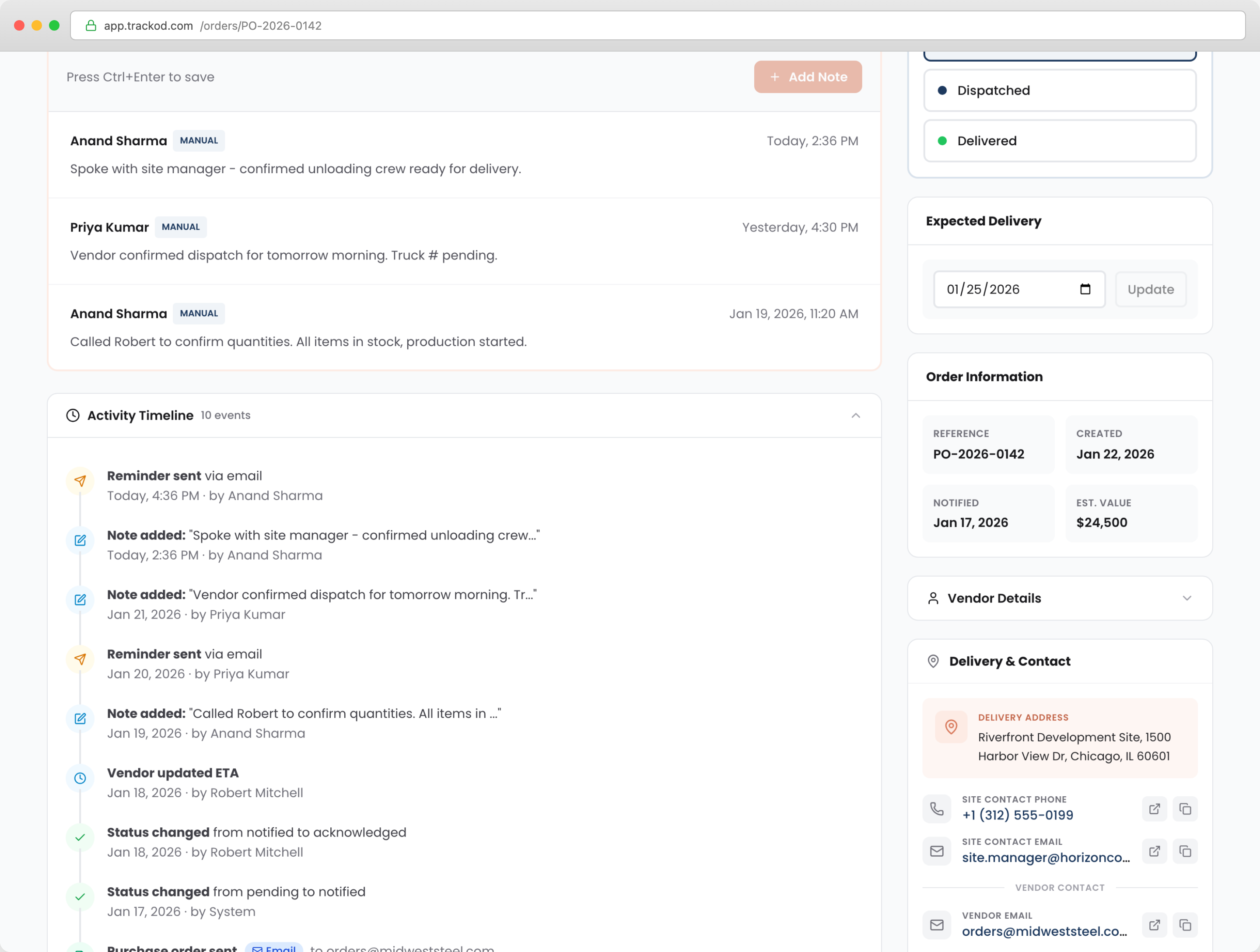
Click on any order and see its full timeline. When was it created? When was the vendor notified? What did they respond? When did the status change? Every update is recorded with a timestamp and the name of the team member who made it.
When your manager asks about an order, you have the full picture ready. When a colleague is away, anyone on the team can pick up where they left off. The history is always there — clear, organized, and easy to follow.
Vendors can update orders directly.
Each vendor gets a unique link to their own dashboard. From this dashboard, they can see all orders from your company — not just one. With a few clicks, they can acknowledge an order, update its status, provide an expected delivery date, or leave a note. No signup or login required for vendors — they simply click the link and they are in.
You can send this link to your vendor however you prefer. Use Trackod's built-in email notification, or copy the link and share it via WhatsApp, SMS, or any other channel. The choice is yours.
When a vendor updates an order through their dashboard, the change appears in Trackod immediately. You do not need to ask them for updates and then enter the information yourself — it flows directly into the system.
Your team's activities are captured too.
When you or your team members make a phone call, have a conversation, or learn something new about an order, you log it in Trackod. Add a note, update the status, record what was discussed. Every entry shows who added it and when.
This keeps everyone on the same page. If you are out for the day, your colleague can see exactly where things stand. If you need to revisit an order from last week, the full context is there waiting for you.
Errors are reduced.
With one system holding all your order information, there is no risk of accidentally deleting a row in Excel or updating the wrong order. Changes are tracked and history is preserved. You always have a reliable record to refer back to.
You know what needs attention.
Trackod shows you which orders require action. Orders that are overdue, vendors who have not responded, deliveries due soon — these are highlighted so you can prioritize your day. Instead of scanning through every row to find problems, the system surfaces them for you.
Less time searching, fewer errors, better teamwork, and a complete view of where every order stands.
What's Next
Now that you understand what Trackod does and how it can help, the rest of this guide will walk you through getting started.
| Section | What You'll Learn |
|---|---|
| Getting Started | How to log in, set up your company, and invite your team members |
| Import Purchase Orders | How to bring your orders into Trackod and notify vendors |
| Daily Order Management | How to navigate the orders list, use the action queue, and manage orders day-to-day |
| Vendor Portal | How to share portal links and understand vendor updates |
| Reference | FAQs and how to contact support |
Each section includes step-by-step instructions with screenshots to guide you through.
Ready? Let's get started with Account Setup.